

InControl2: Remotely Switch SIM Cards
February 16, 2024
Webinar | Event Connectivity with Peplink
May 14, 2024
Quad 4G Bonding Router for Under $2500 With Peplink Synergy mode!
Welcome! Join Professor P as he dives into the world of Peplink Transit Duo routers—the unsung heroes of mobile connectivity
Prepping for Synergy:
- First, you want to log in to your router. Add the first Transit Duo, which will be your Synergy controller. Then add the second Transit Duo which will be the Synergized device.
- Go to 'Network' in the Menu, then go to WAN in the left menu.

- Scroll down to 'Synergy Controller' and click edit
- Choose WAN by clicking the checkbox
- Save and Apply Changes

Renaming Devices in InControl:
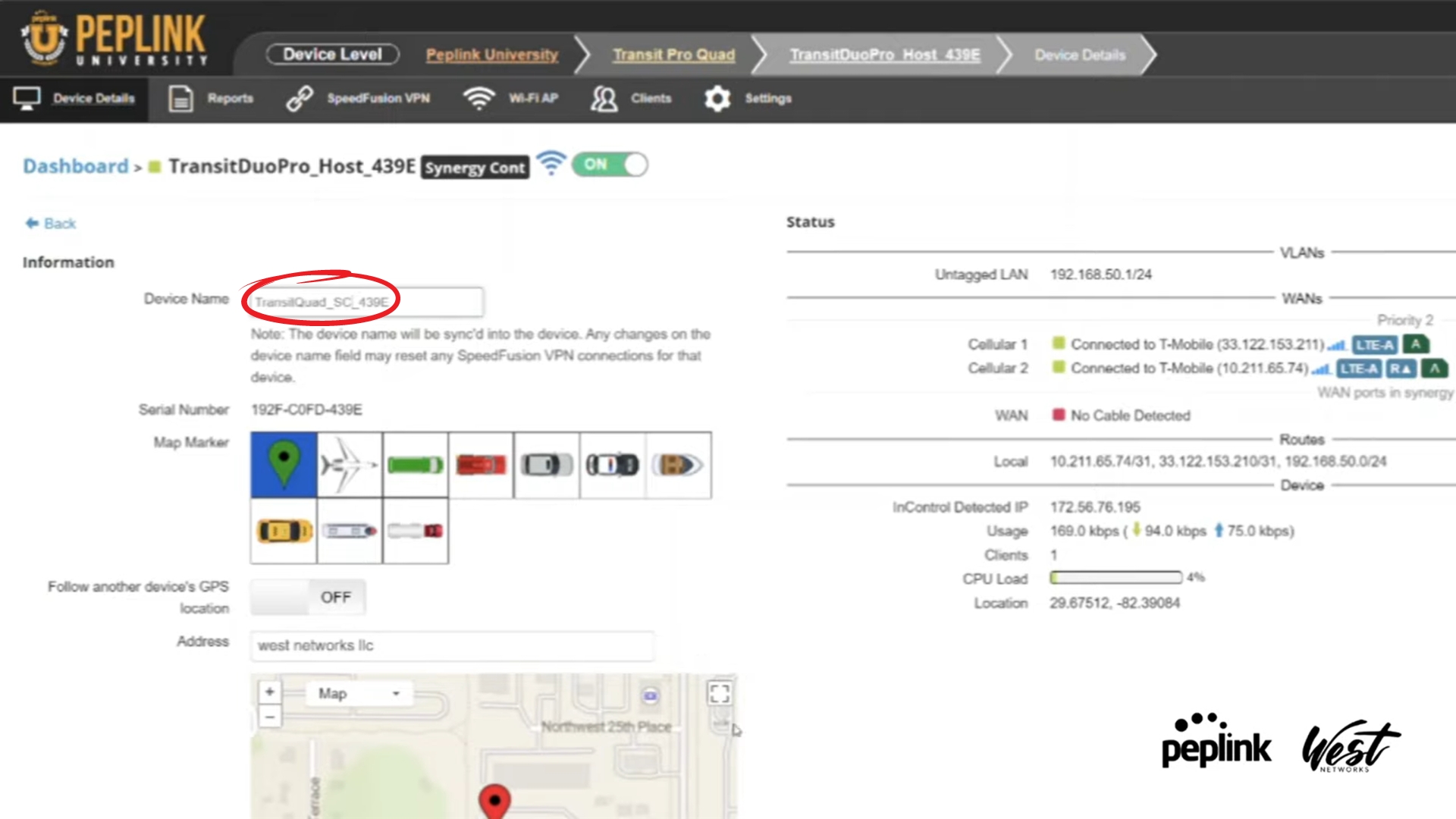
- Peter names the two devices "TransitQuad_SC_439E" for Synergy Controller, and "TransitQuadSD_9F0B" for Synergized Device
- For the TransitQuad_SC_439E, go back to dashboard and clicks on the original device name, then click edit, change the device name, then scroll and click Save
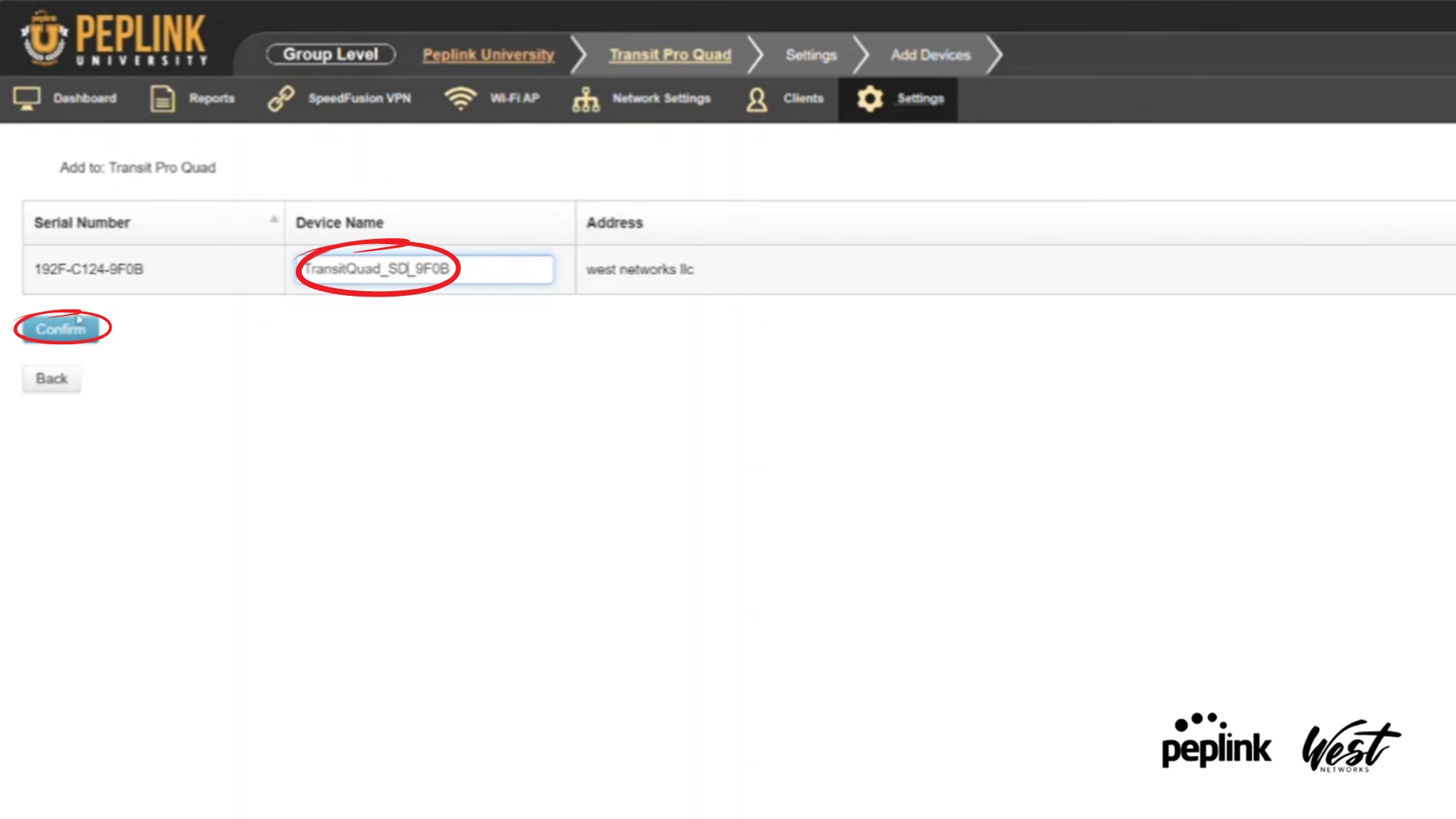
- For the TransitQuadSD_9F0B, go back to adding the device.
He enters "SD" for the tags,
then enters the name under 'Device Name' - Click Confirm
LAN:
- On the physical routers, plug in the LAN on the SD to the WAN of the SC
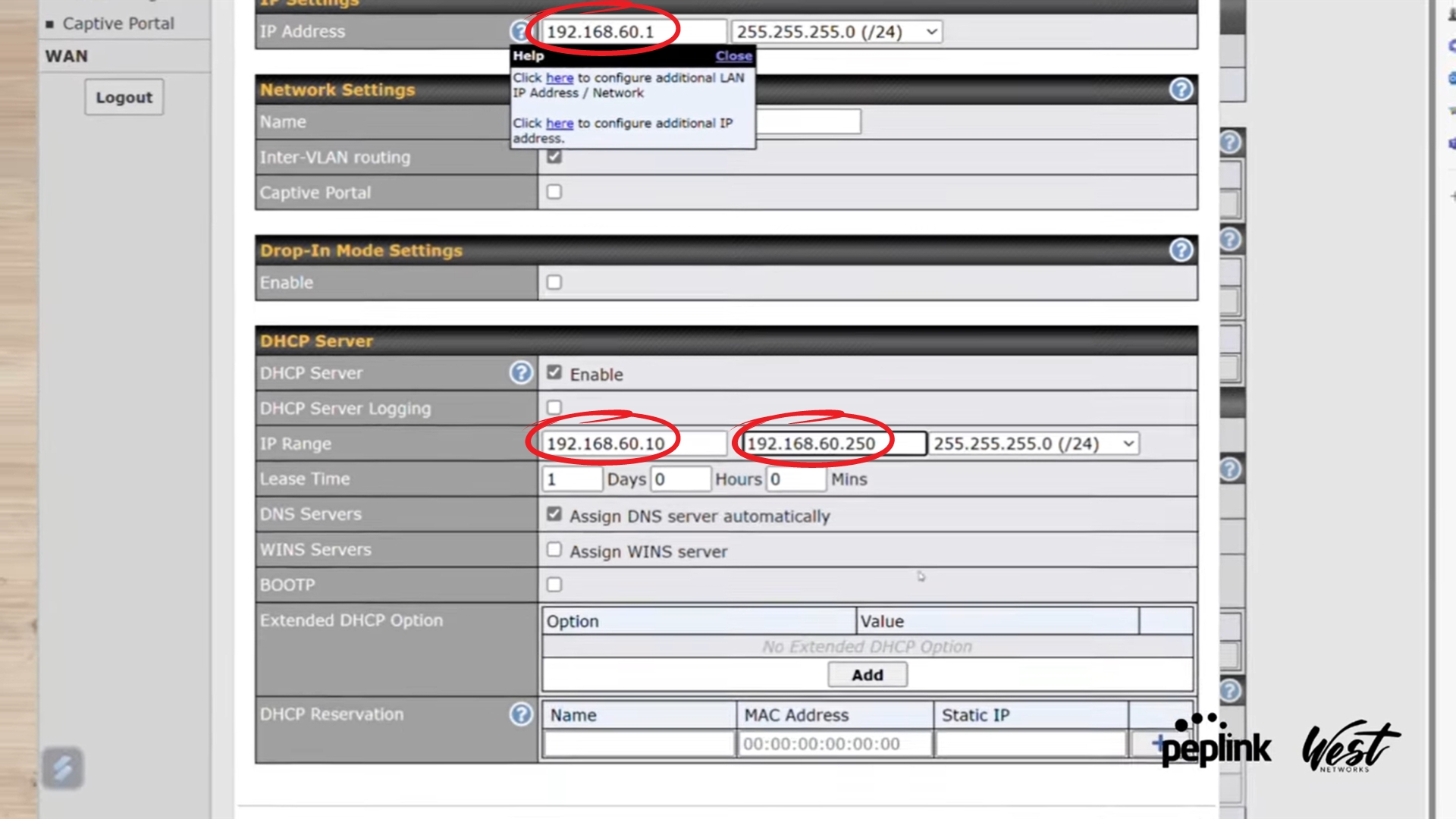
- Then, in the router, click on 'Network' in the menu. Then, click on "Untagged LAN"
- He is changing the IP Adress to 192.168.60.1. He changes the IP Range to 192.168.60.10 - 192.168.60.250
- Click Save and Apply Changes
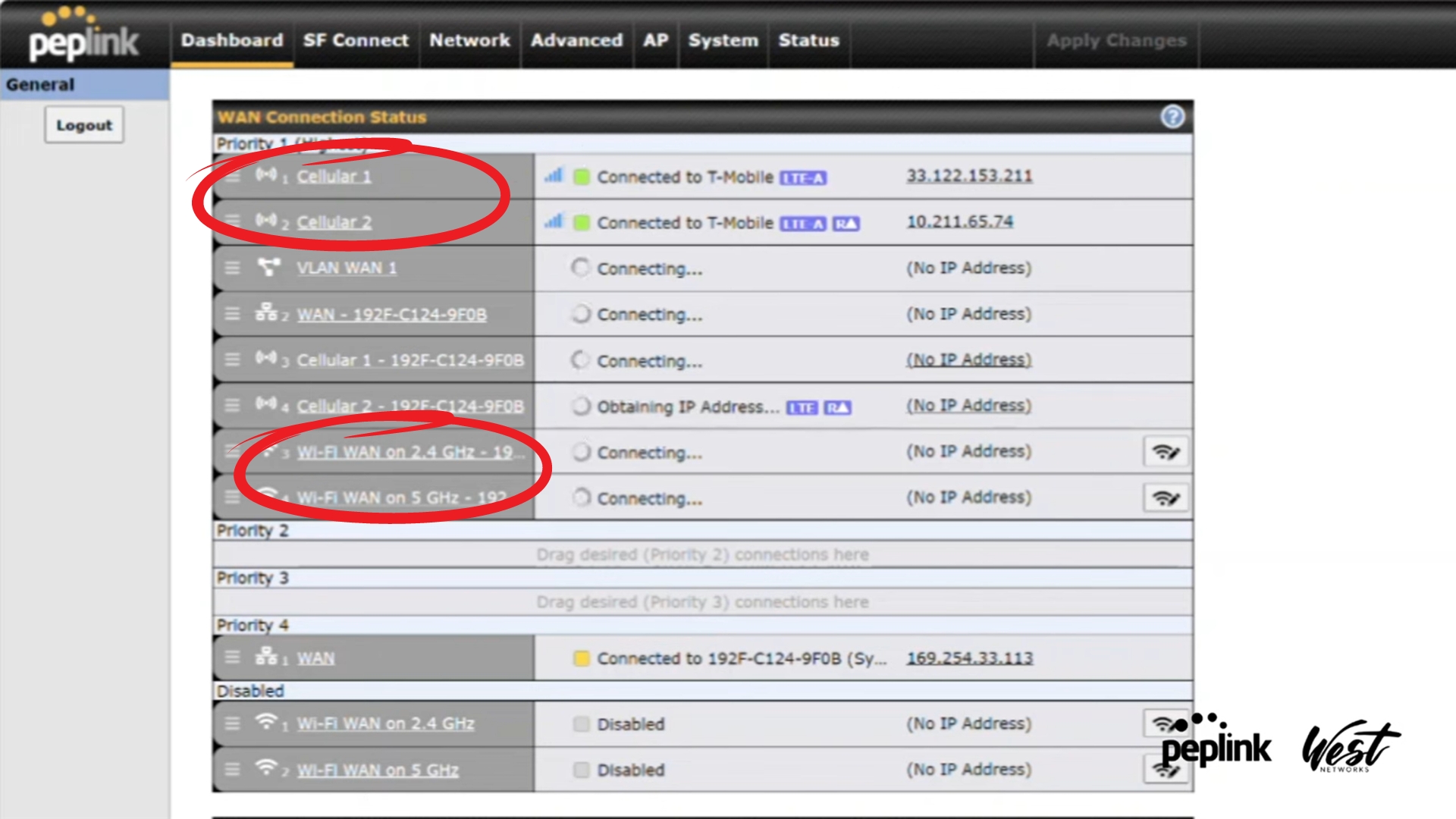
- Go back to Dashboard and refresh the page using the new IP Adress.
- Then, drag 'Cellular 1', 'Cellular 2', 'Wi-Fi Wan on 2.4 GHz -192', and 'Wi-Fi WAN on 5 GHz - 192' up to Priority 1. Now there are 8 internet connections.
Connect to Wi-Fi:
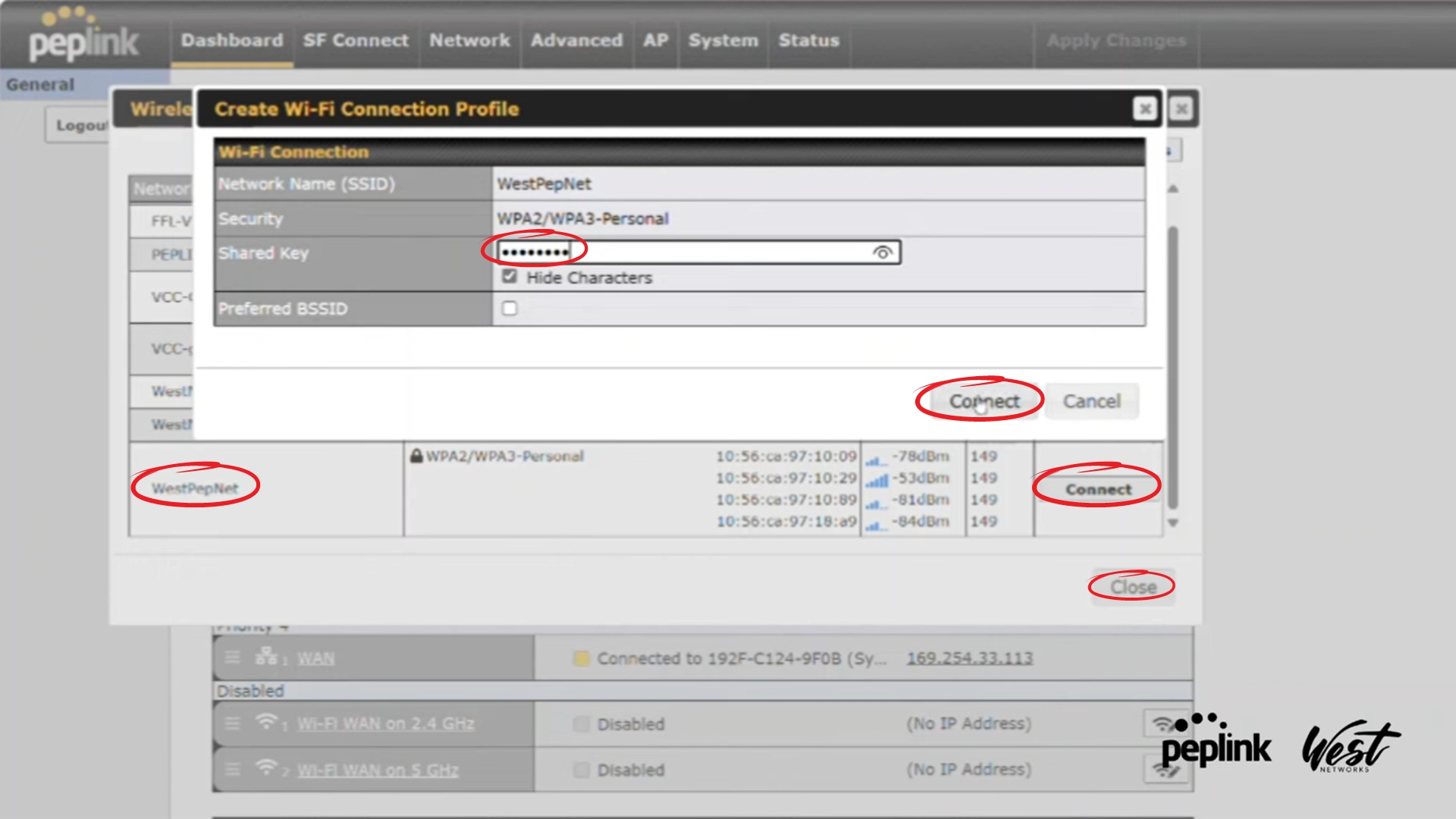
- On the Wi-Fi WAN on 5 GHz, click the Wi-Fi Symbol
- Then, he clicks 'Connect' on WestPepNet, but you may choose your desired connection. Then, enter the password and click 'Connect' and click Close
Choose SFC Location:
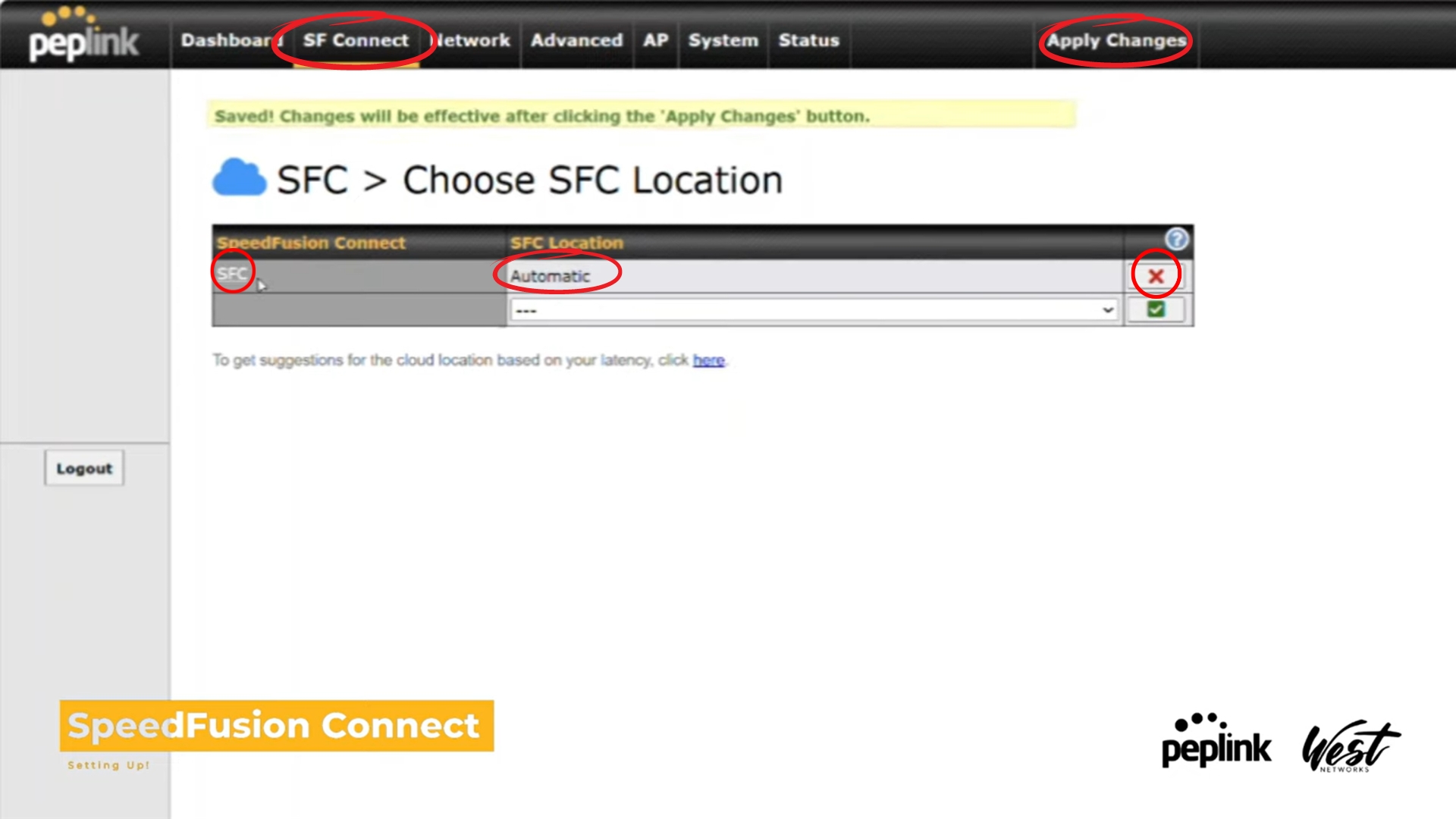
- in the menu, click SF Connect, and select "Choose SFC Location"
- Set the SFC Location to Automatic, then click the checkmark.
- Click on the SFC button, scroll down and enable TCP Ramp Up.
- Save and Apply Changes.
Optimize Cloud Application:
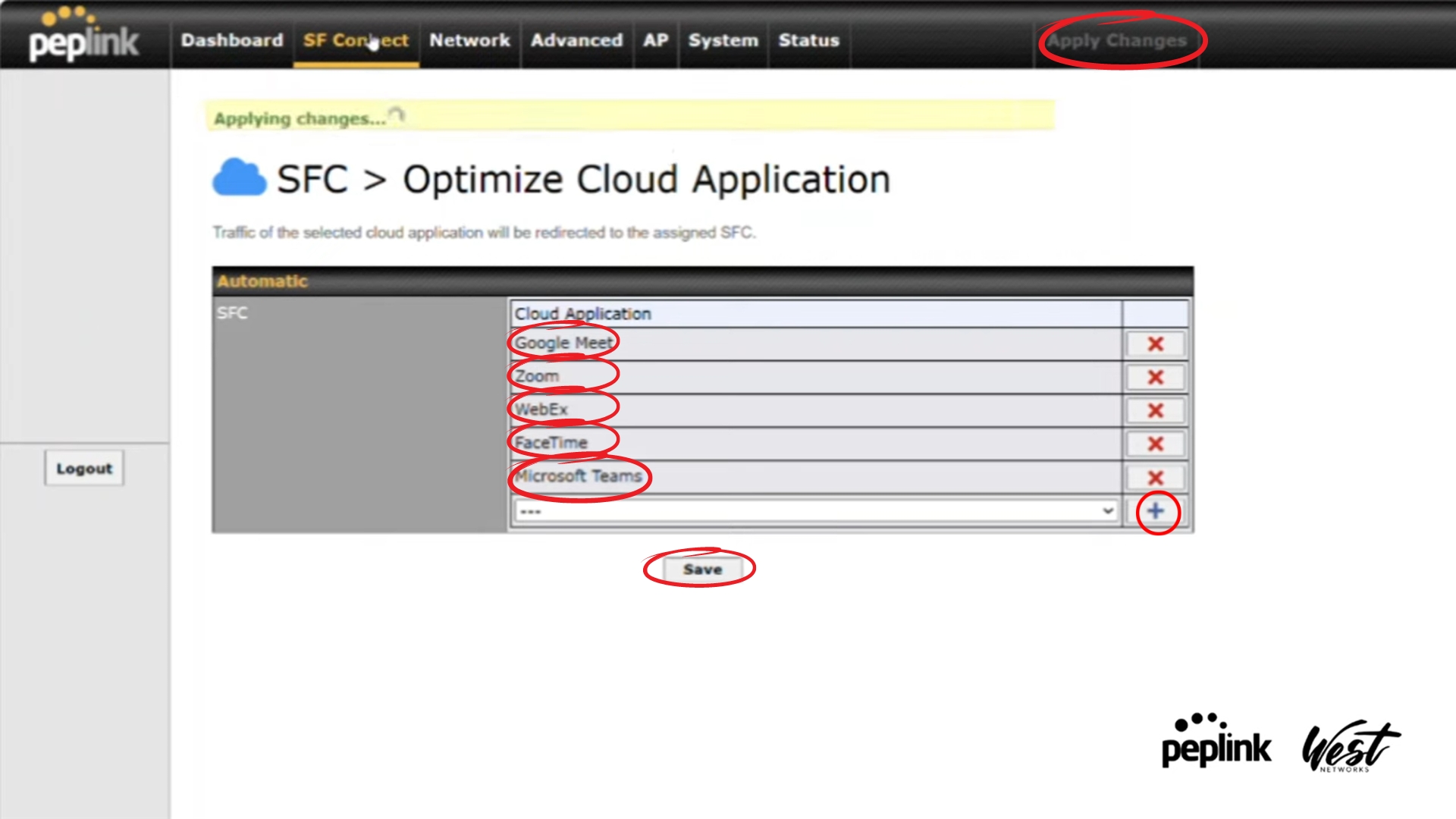
- Go back to SFC Connect and Select "Optimize Cloud Application"
- He then adds Google Meet, Zoom, WebEx, Facetime, and Microsoft Teams to Cloud Application by clicking the '+' button
- Click Save and Apply Changes
Link Wi-Fi to SFC:
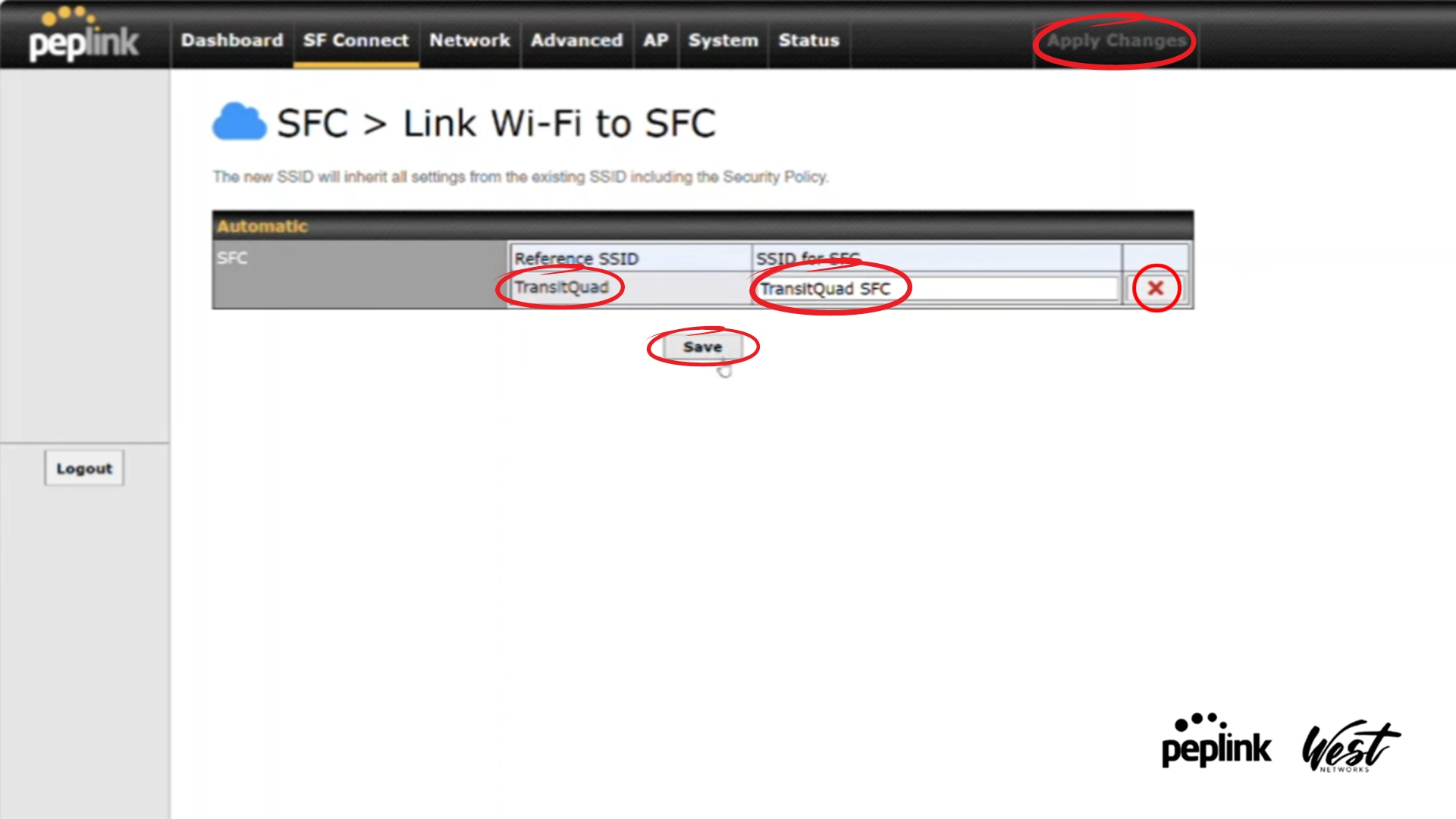
- Go back to SFC Connect and Select "Route by Wi-Fi SSID"
- Under 'Reference SSID' choose the TransitQuad
- Under 'SSID for SFC', type in TransitQuad SFC and click the '+' button
- Click Save and Apply Changes
Content Blocking:
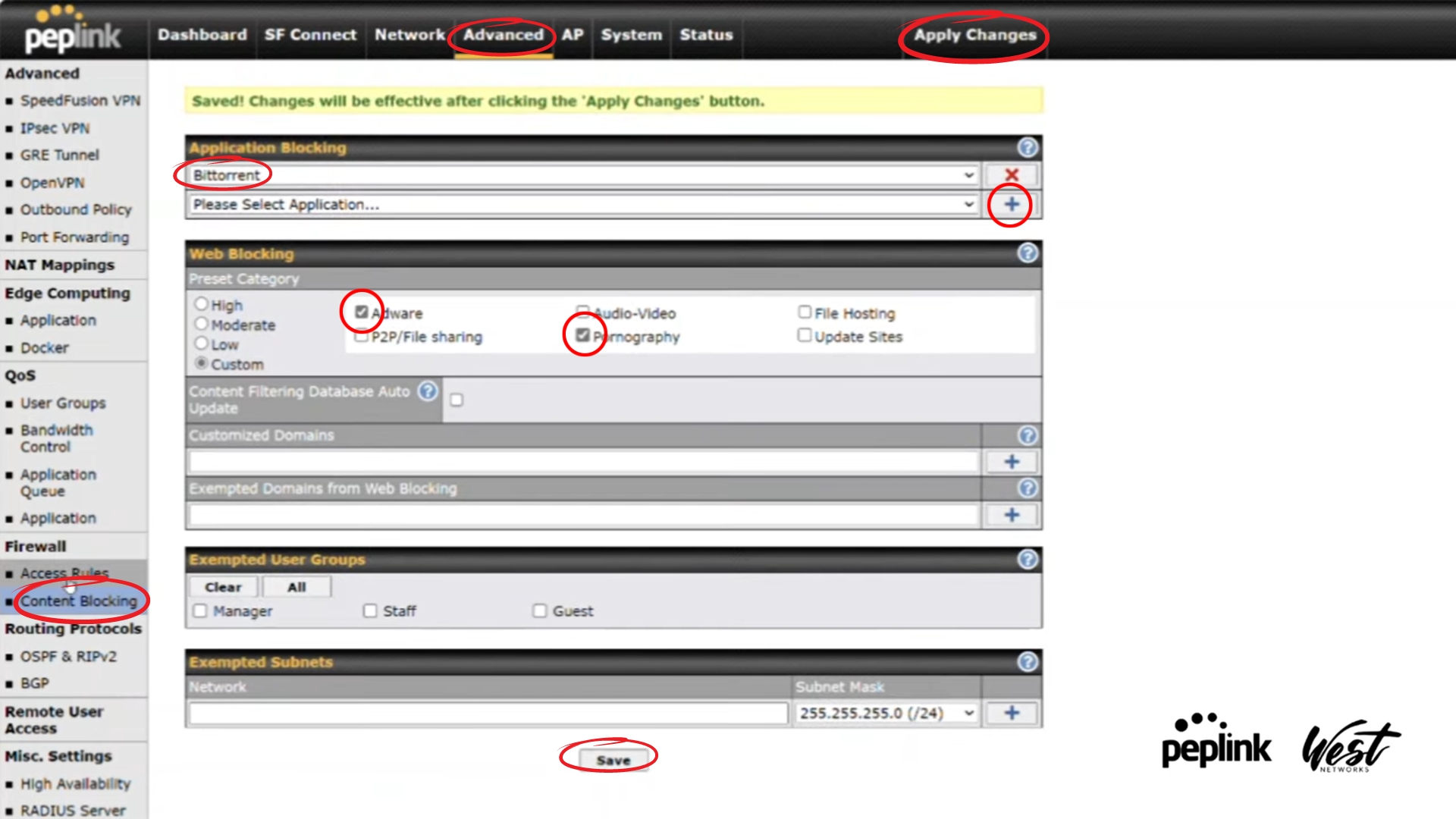
- In the menu, select Advanced. In the left menu, select Content Blocking
- In 'Application Blocking', Peter selects "Bittorrent" by clicking the '+' button
- Then, under Web Blocking, He selects 'Adware' and 'Pornography' to block by clicking the checkboxes.
- Save and Apply Changes
Firewall Rules:
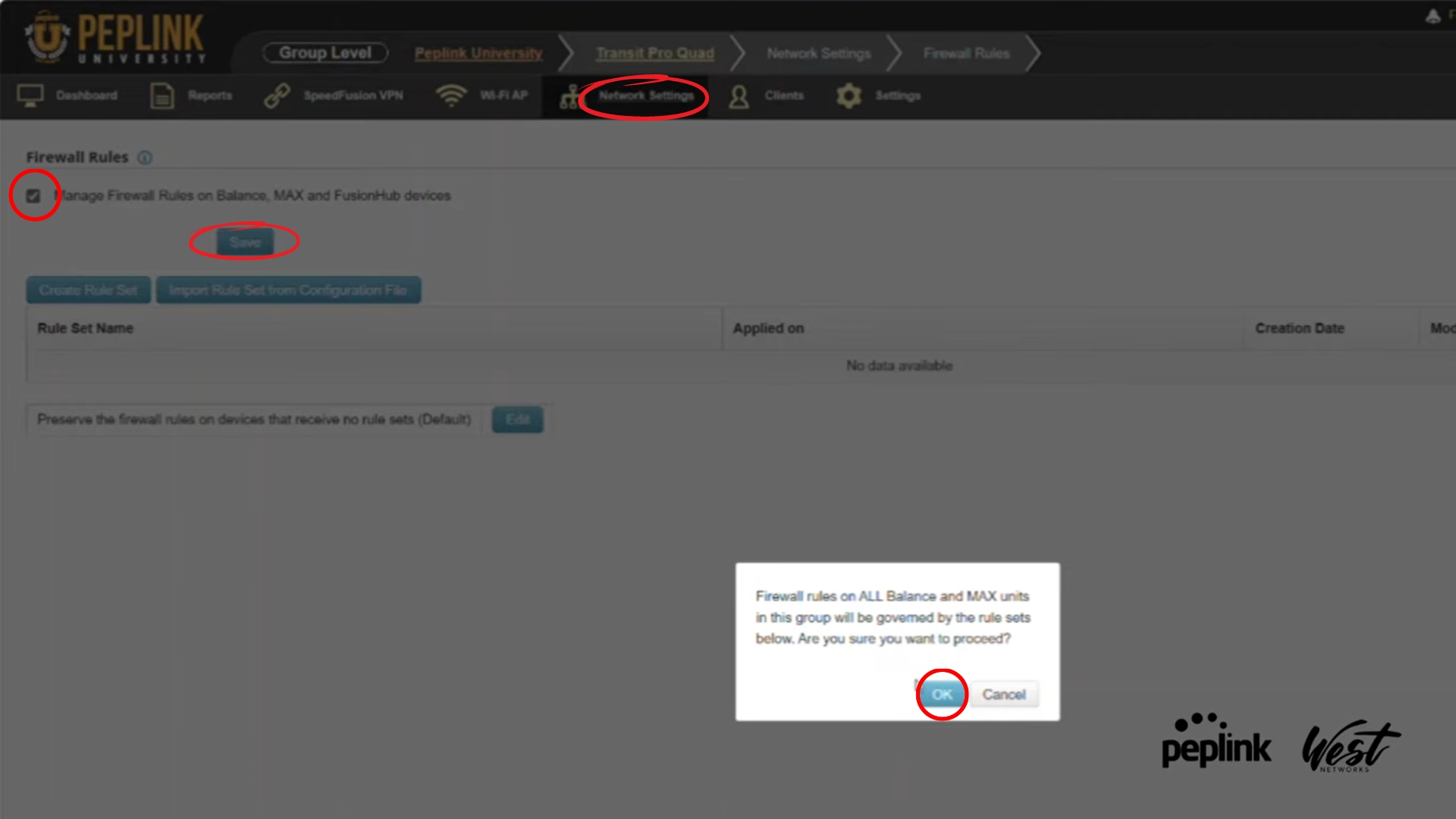
- Go to InControl
- Go to "Network Settings" in the menu and select 'Firewall Rules'
- Manage Firewall Rules by clicking the checkbox and hit save, then 'OK'
- Click 'Create Rule Set'
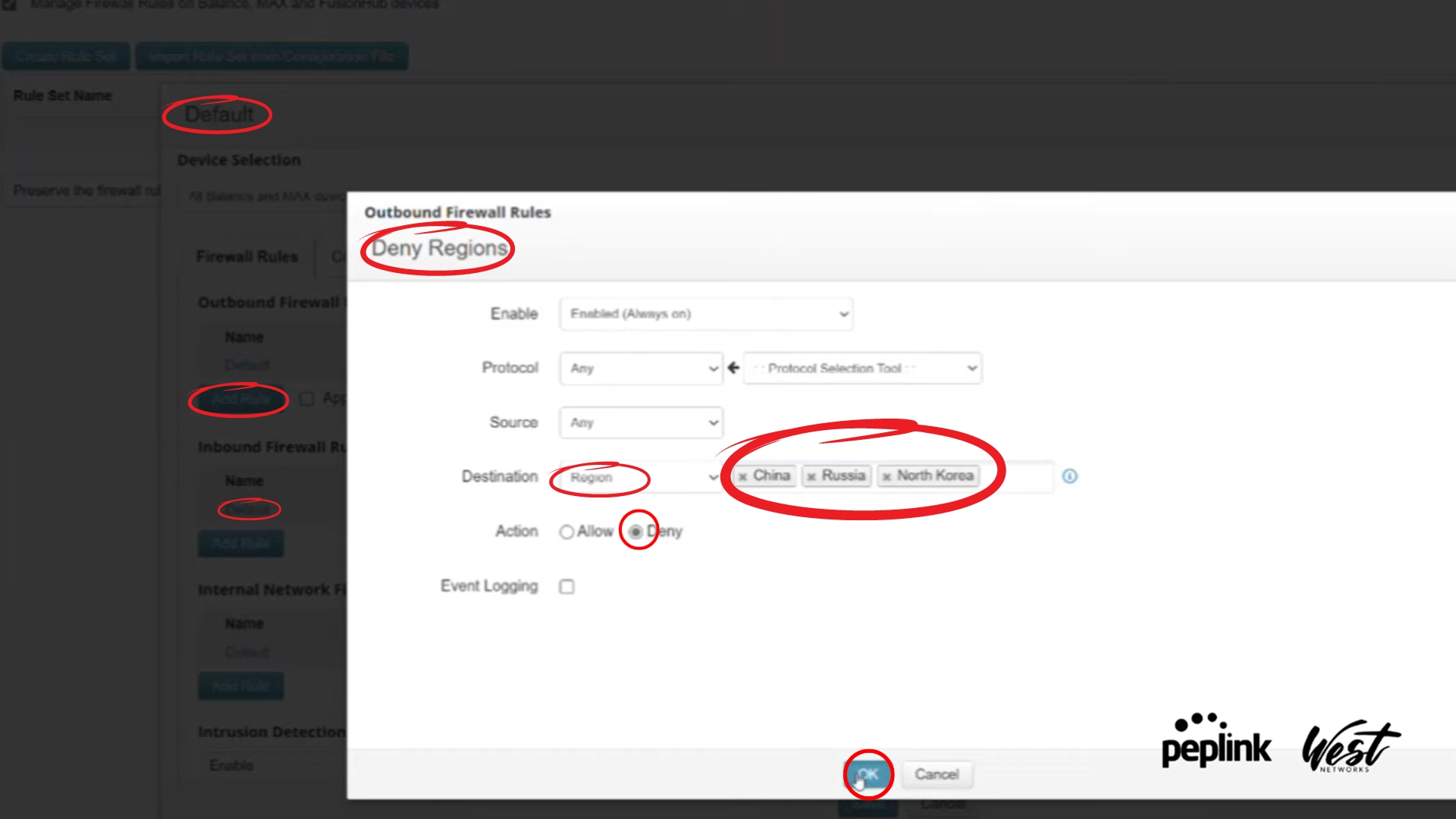
- Peter names the rule '"Default" in the top box, then clicks on 'Default' under "Name" in Inbound Firewall Rules, then selects Deny and clicks 'OK'
- Then, under Outbound Firewall, he clicks "Add Rule", and names it 'Deny Regions'
- For Destination, he selects 'Region' and enter China, Russia, and North Korea
- For Action, click Deny. Hit 'OK
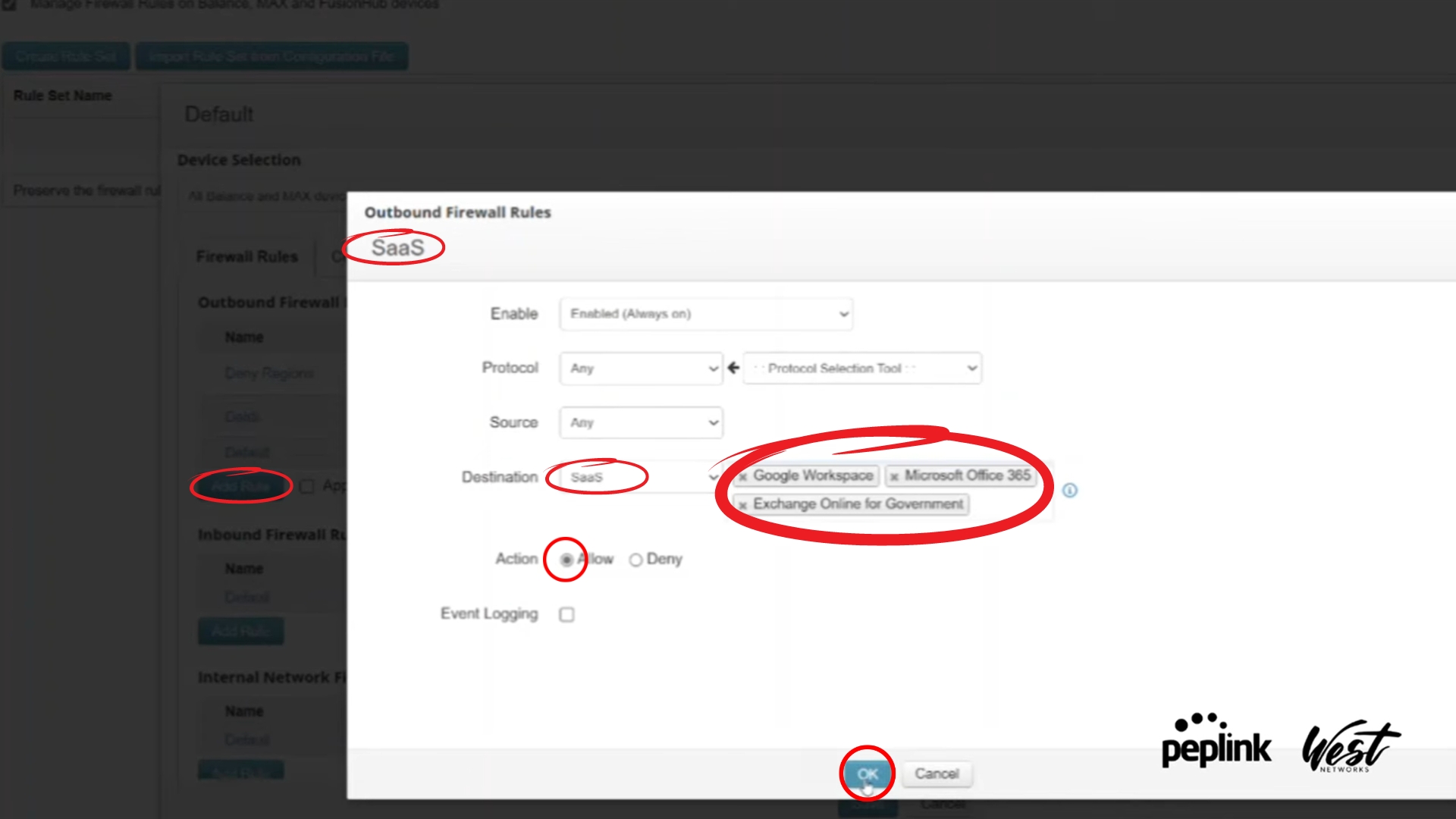
- Under Outbound Firewall, select 'Add Rule' again. Name it 'SaaS'
- For Destination, select SaaS. Then, Peter chooses Google Workspace, Microsoft Office 365, and Exchange Online for Government.
- For Action, Select Allow. Hit 'OK'
- Scroll down, enable Intrusion Detection and DoS Prevention by clicking the checkbox.
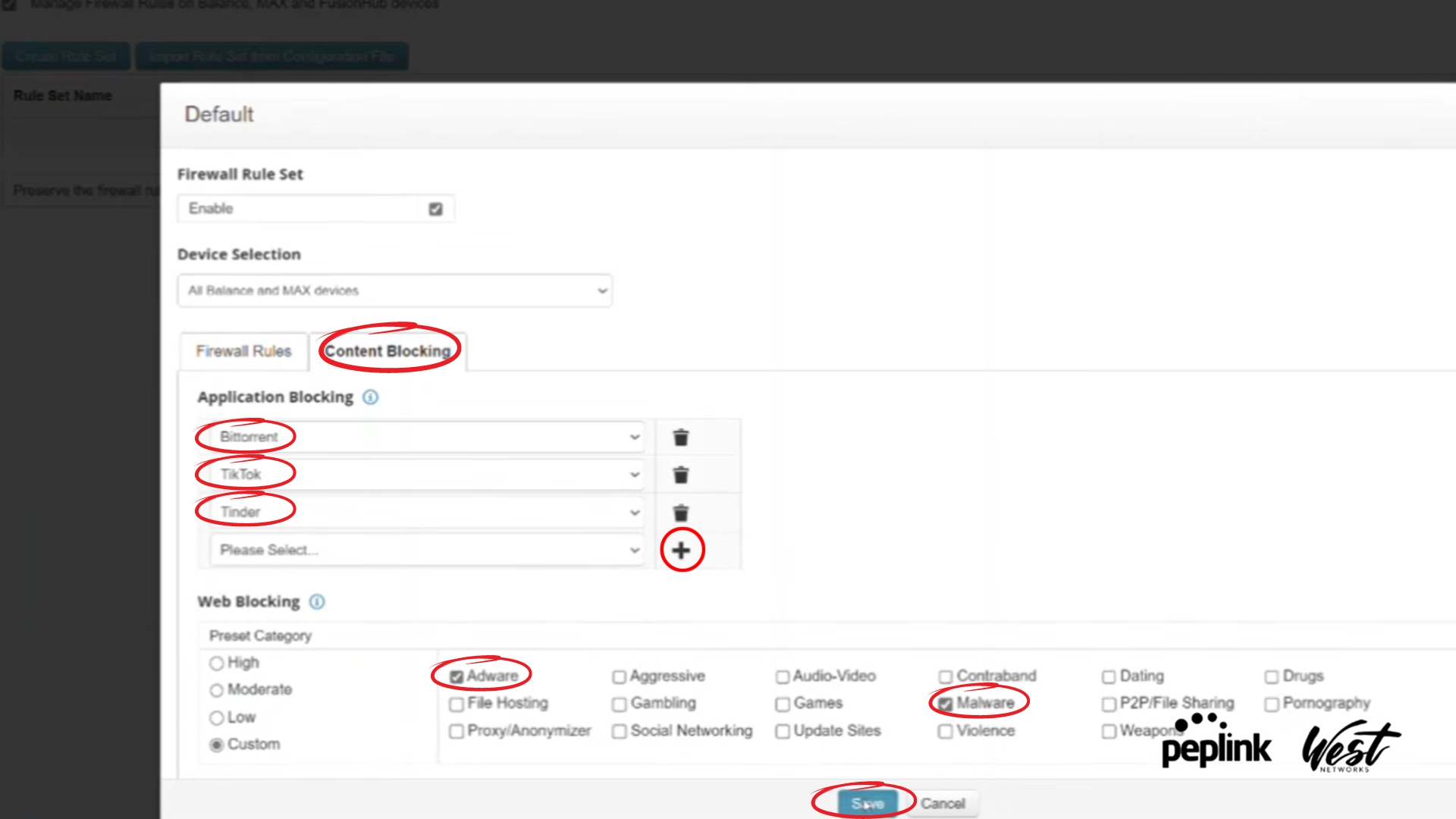
- Scroll up, go to Content Blocking.
- Under Application Blocking, Peter selects Bittorrent, TikTok, and Tinder by clicking the '+' button. Then, under Web Blocking, He selects Adware and Malware by clicking the checkboxes.
- Click Save.

Related posts


June 20, 2025


