

Webinar | Peplink Solutions for Retail Connectivity
July 31, 2024
Hot Failover with SpeedFusion | InControl2
September 17, 2024

Wi-Fi meshing enhances network coverage and performance by enabling seamless roaming and easy expansion through optimized configurations and the use of advanced technologies like Wi-Fi 6 and 7.
- Wi-Fi meshing extends network coverage wirelessly, offering flexibility for hard-to-reach areas, while roaming connects multiple access points for seamless transitions.
- The webinar clarifies the difference between Wi-Fi roaming and Wi-Fi mesh, emphasizing that meshing extends networks wirelessly while roaming connects multiple access points.
- Wi-Fi meshing extends the coverage range of a Wi-Fi network wirelessly, and Peplink supports both Wi-Fi meshing and roaming.
- Meshing allows you to extend your Wi-Fi coverage wirelessly by connecting access points (APs) that enable seamless roaming throughout a space.
- Wi-Fi meshing allows for flexible network coverage without the need for physical wiring, making it ideal for temporary locations or hard-to-reach areas, though it comes with certain limitations.
- Using wired connections between access points is preferred for stability, but Wi-Fi meshing is a valuable alternative for expanding networks when wiring isn't feasible.
- Wi-Fi meshing allows for flexible extension of wireless coverage by placing additional access points in various locations without the need for physical wiring.
- Mesh networks enhance Wi-Fi performance and connectivity, allowing seamless roaming and easier setup with Peplink products through Balance UI or Cloud InControl.
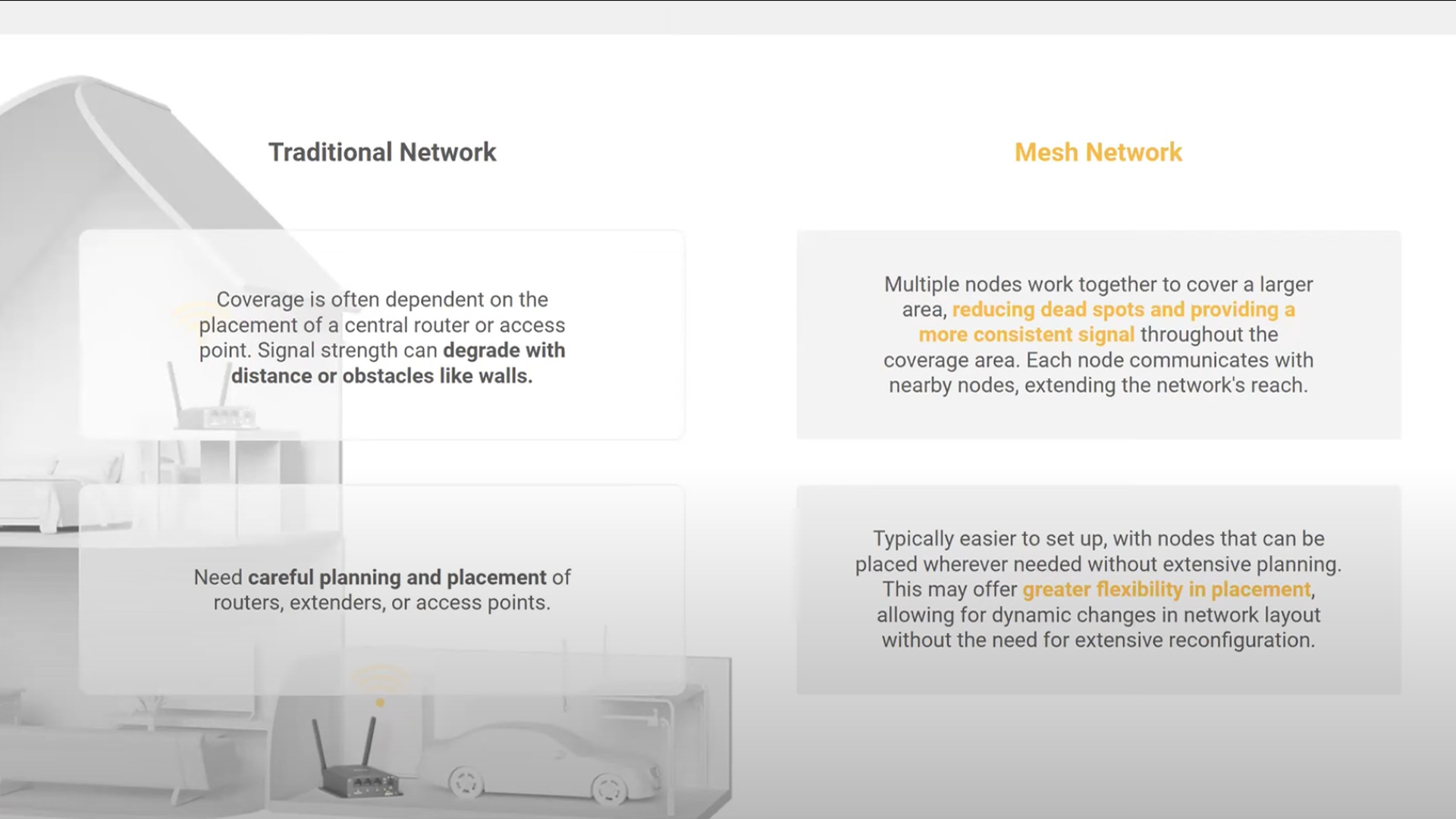
- Mesh networks are an improved alternative to traditional repeaters and extenders, offering better performance and connectivity.
- Mesh networks provide seamless Wi-Fi roaming and advanced layouts compared to repeaters, which create disconnections and lack flexibility.
- Peplink products can be set up for Wi-Fi meshing either through the Balance UI or via zero-touch configuration in Cloud InControl.
- To set up a Wi-Fi mesh network, log into your access points, create a wireless mesh under the WDS mesh tab, and assign it to a profile, ensuring you are using the correct firmware version.
- A new mesh link information page in firmware 3.8.4 provides detailed insights on signal strengths, connection types, and throughput for better Wi-Fi management.
- Easily expand your Wi-Fi with a mesh setup by configuring a new SSID, enabling security features, and optimizing settings for seamless roaming across multiple access points.
- To set up Wi-Fi mesh, configure a new SSID for the access points tagged as "mesh" while ensuring the main device remains isolated from the current Wi-Fi network.
- Setting up WPA2/WPA3 security and enabling Fast Transition enhances seamless roaming between access points while creating an SSID.
- To enable efficient wireless roaming, set a signal threshold and adjust the output power and minimum client signal strength in the Wi-Fi AP group settings.
- Setting the signal strength to negative 71 dBm allows devices to roam seamlessly between access points, ensuring stable connections for applications like video calls.
- Wi-Fi mesh setup allows for seamless integration of multiple access points across various sites by creating mesh IDs and assigning them to devices.
- Wireless SSID, roaming, and mesh ID have been successfully configured and pushed to three devices, which are now online and managed through InControl.
- Easily expand Wi-Fi coverage and performance with a mesh network that optimizes connections in real-time using zero touch configuration.
- Three access points are connected via Ethernet to a hub device, which remains plugged into the router while the others are unplugged.
- The main access point wirelessly connects to remote access points, establishing a mesh network that allows monitoring of signal strength and throughput.
- Wi-Fi mesh can be effortlessly set up and managed with zero touch configuration using InControl and the latest firmware by tagging devices for easy provisioning.
- Mesh networks can simultaneously evaluate multiple connection paths, enhancing Wi-Fi coverage and performance compared to traditional repeaters and extenders.
- The system evaluates multiple wireless paths to maintain an internet connection, choosing the most effective route based on transmit rates.
- Mesh networking dynamically optimizes traffic paths in real-time, providing superior performance compared to static repeaters, especially in changing RF environments.
- Wi-Fi mesh networks perform better with 5 GHz for backhaul and 2.4 GHz for client connections, as each additional hop can degrade signal quality significantly.
- Wi-Fi meshing is brand specific, and while you can use one frequency for both mesh and user access, doing so may degrade performance with more mesh hops.
- Wi-Fi performance decreases with each additional hop, especially on 2.4 GHz, while 5 GHz can maintain over a gigabit per second despite sharing bandwidth for meshing.
- Wi-Fi mesh networks can experience about 50% signal degradation per hop, and using 5 GHz for backhaul while broadcasting at 2.4 GHz is effective.
- Using a 2.4 GHz channel for client connections and a 5 GHz channel for backhaul improves mesh network performance, allowing for greater coverage and reduced bottlenecks.
- You can extend your network wirelessly by connecting devices like laptops or switches to remote access points.
- Properly configuring spanning tree priority is essential to prevent loops when integrating Ethernet devices with a wireless mesh network.
- Wi-Fi mesh networks perform best with minimal hops, ideally using Wi-Fi 6 devices and higher frequency bands, while future improvements are expected with Wi-Fi 7.
- Wi-Fi mesh currently supports 20, 40, and 80 megahertz but not 160 megahertz.
- Minimizing hops in a Wi-Fi mesh network is crucial for maintaining optimal performance, as each additional hop significantly reduces throughput.
- Mesh networks can significantly reduce throughput with each additional hop, making higher frequency bands like 5 GHz and future 6 GHz crucial for maintaining speed.
- Wi-Fi mesh networks can support two to three hops for optimal performance, with potential capacity increases expected with Wi-Fi 7.
- To achieve optimal Wi-Fi mesh performance, ensure compatibility by using Wi-Fi 6 devices together, as higher capacity and simultaneous communication are better supported by devices like the AX AP compared to 2x2 MIMO devices.
- Wi-Fi mesh performance is affected by the base access point's capabilities, with limitations on rebroadcasting when using the same frequency for both mesh and rebroadcast.
- VLANs can be trunked over Wi-Fi mesh for seamless handoff, supporting multiple SSIDs, but testing is essential for switch compatibility and optimal performance with like devices.
- VLANs can be trunked over a Wi-Fi mesh as they operate at Layer Two, allowing for seamless handoff.
- Multiple SSIDs can be mapped to different VLANs, and while mesh works over these SSIDs, testing is needed to confirm functionality with switches.
- Wi-Fi mesh networks can be created using Wi-Fi 5 and Wi-Fi 6 devices, but it's best to mesh like devices to avoid performance degradation.
- Email for VLAN inquiries, and a YouTube video will be created demonstrating the meshing of two Pepwave switches and access points.
- Join the Peplink Tech Summit in Orlando from November 3rd to 6th for training on the new Ping Certified Engineer program and networking opportunities.


mattwestwn
Graphic Designer at West Networks
Related posts


June 20, 2025